


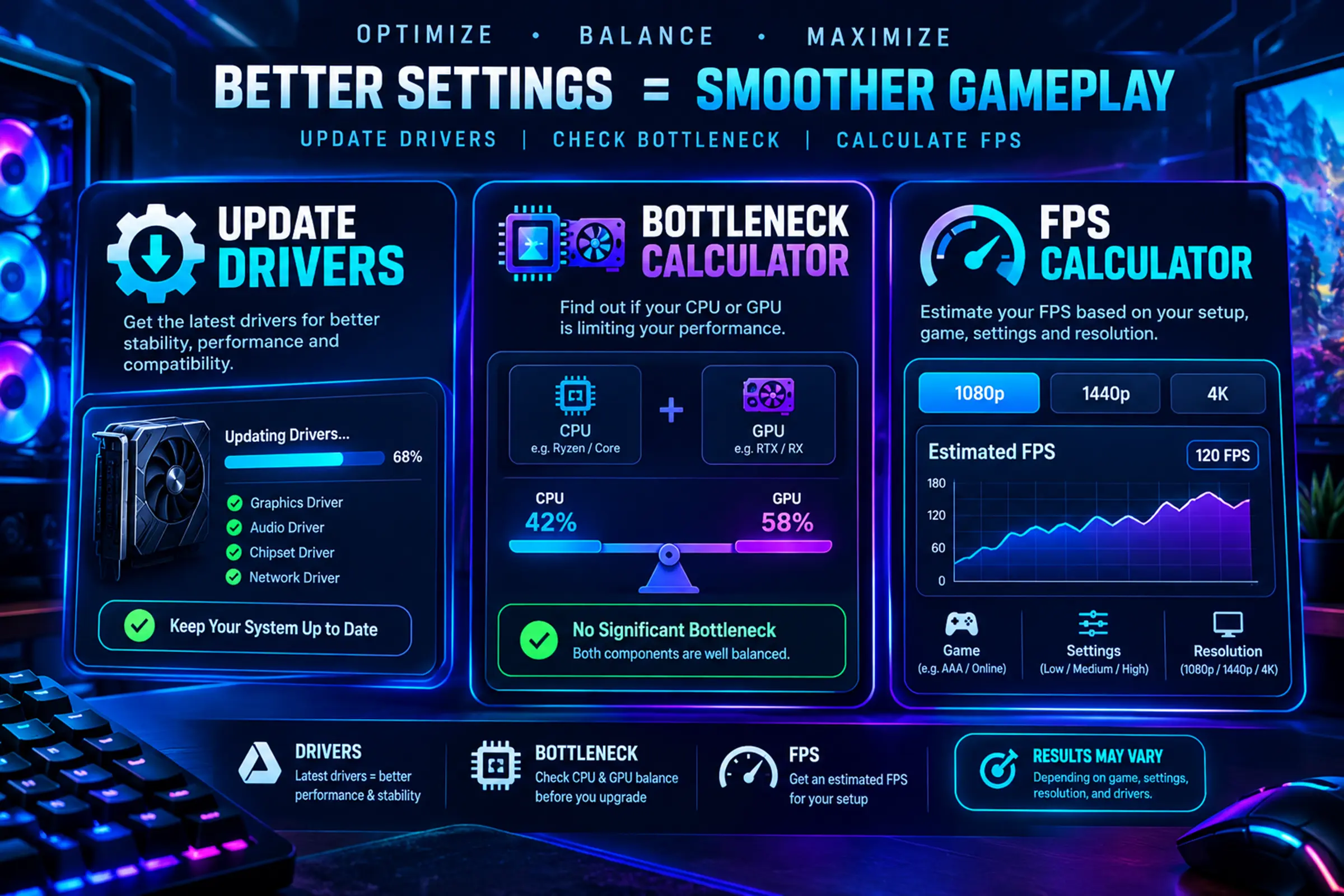
A smooth gaming experience depends on more than simply owning a powerful graphics card or a high-end processor. Even a well-built gaming PC can experience stuttering, frame drops, slowdowns, or inconsistent performance when its hardware and software are not properly optimized. Fortunately, gamers can use several practical methods to identify performance problems and improve their systems.
Three useful steps are to update drivers, check hardware balance with a bottleneck calculator, and measure gaming performance with an FPS calculator. Together, these tools and practices can help users understand what is limiting their PC and make more informed optimization decisions.
Why PC Performance Can Change Over Time
Computer performance is affected by many different factors. New games may demand more processing power than older titles, while outdated drivers can prevent hardware from working efficiently. Background applications can also consume CPU, RAM, or GPU resources while a game is running.
Thermal problems are another common issue. If a processor or graphics card becomes too hot, it may reduce its operating speed to control temperatures. This can result in lower frame rates and inconsistent gameplay.
Instead of immediately replacing hardware, gamers should first determine the actual cause of a performance problem. Software updates, hardware analysis, and frame-rate measurements can provide useful information before making expensive upgrades.
Update Drivers for Better Compatibility
Graphics drivers act as a communication layer between the operating system, games, and the graphics hardware. Manufacturers regularly release driver updates that can improve compatibility, fix bugs, and introduce optimizations for newer games.
For this reason, it is important to update drivers regularly, particularly for the graphics card. A driver that is several months old may not include improvements designed for recently released games.
However, updating drivers should be done carefully. Users should download drivers from reliable sources and select the correct version for their hardware and operating system. Installing an incompatible driver can create unnecessary problems.
Drivers are not limited to graphics cards. Chipset, network, audio, storage, and other device drivers can also affect the overall computing experience. Keeping important system drivers current can help maintain stability and compatibility.
Understanding Hardware Bottlenecks
A bottleneck occurs when one component limits the ability of another component to perform at its full potential. For example, a very powerful graphics card paired with a significantly weaker processor may not deliver the expected gaming performance in CPU-intensive titles.
The opposite can also happen. A powerful processor combined with an entry-level graphics card may leave the GPU struggling to produce the desired frame rate at higher graphical settings.
This is where a bottleneck calculator can be useful. By entering information such as the CPU, GPU, resolution, and sometimes the intended workload, users can receive an estimate of whether one component may limit another.
A bottleneck calculator should be treated as a starting point rather than an absolute measurement. Actual gaming performance depends on the specific game engine, graphics settings, resolution, memory configuration, cooling, background applications, and many other variables.
CPU Bottlenecks and GPU Bottlenecks
CPU and GPU bottlenecks behave differently.
A CPU bottleneck can occur when the processor cannot prepare enough game data for the graphics card. This may be more noticeable in games with large maps, complex simulations, or many characters and objects on screen.
A GPU bottleneck happens when the graphics card is the main component limiting frame production. Increasing resolution or enabling demanding graphical effects can increase the workload placed on the GPU.
Neither situation automatically means that the PC is poorly built. Every gaming computer has a performance limit somewhere. The goal is to understand where that limit occurs and whether it matches the user’s needs.
Measure Performance with an FPS Calculator
Frame rate is one of the easiest ways to describe gaming performance. Frames per second, commonly called FPS, indicates how many individual frames a system can produce during gameplay.
An FPS calculator can provide an estimated frame-rate range based on hardware specifications and game-related settings. This can be useful when planning a PC build or deciding whether an existing system is suitable for a particular game.
For example, someone considering a new graphics card can compare estimated performance at 1080p, 1440p, or 4K resolutions. This can help set realistic expectations before purchasing new hardware.
However, estimated FPS should not be confused with guaranteed real-world performance. Two systems with similar specifications can produce different results because of driver versions, game patches, cooling, RAM speed, background processes, and graphical settings.
Combine Performance Tools for Better Results
Using only one performance tool may not provide the complete picture. A more practical approach is to combine several sources of information.
First, check whether the system has current drivers. Next, use a bottleneck analysis tool to understand whether the CPU and GPU are reasonably balanced. Finally, use an FPS calculator to estimate expected performance in the games and resolutions that matter most.
After making changes, users can compare actual in-game FPS with the previous results. This process makes it easier to determine whether an upgrade or optimization has produced a meaningful improvement.
Other Ways to Improve Gaming Performance
Driver updates and hardware analysis are only part of PC optimization. Players should also review their in-game graphics settings. Reducing demanding options such as shadows, reflections, volumetric effects, and certain anti-aliasing settings can sometimes provide a noticeable frame-rate improvement.
Closing unnecessary background applications can free system resources. Keeping adequate free storage space and maintaining good airflow can also contribute to stable system operation.
For laptops and compact PCs, thermal management can be especially important. Dust buildup, restricted airflow, or an unsuitable surface can increase temperatures and potentially reduce sustained performance.
Make Upgrade Decisions Based on Data
PC upgrades can become expensive when users replace components without identifying the actual limitation. A bottleneck calculator and FPS calculator can help create a more informed starting point.
If the GPU is consistently operating near its limit while the CPU has plenty of available capacity, a graphics upgrade may have a greater effect than replacing the processor. If the CPU is consistently limiting performance in a particular game, a processor upgrade may be more relevant.
The same principle applies to software. Before assuming that old hardware is responsible for poor performance, users should make sure their drivers are current and that unnecessary applications are not consuming resources.
Final Thoughts
Improving gaming performance does not always require buying new hardware. Simple maintenance and performance analysis can reveal opportunities for improvement that may otherwise be overlooked.
Regularly taking time to update drivers, checking component balance with a bottleneck calculator, and estimating expected frame rates with an FPS calculator can give gamers a clearer understanding of their systems.
These tools should be viewed as guides rather than perfect predictions. Real-world testing remains important because every game, PC configuration, and usage environment is different. By combining software maintenance, hardware analysis, sensible settings, and actual performance measurements, gamers can make better-informed decisions and work toward a smoother gaming experience.
Also Read
